Canvas
Generate fast. Then fix the exact thing.
Every generated image ad opens as layers. Move the photo, retype the headline, swap the logo, and export — without re-rolling and hoping.
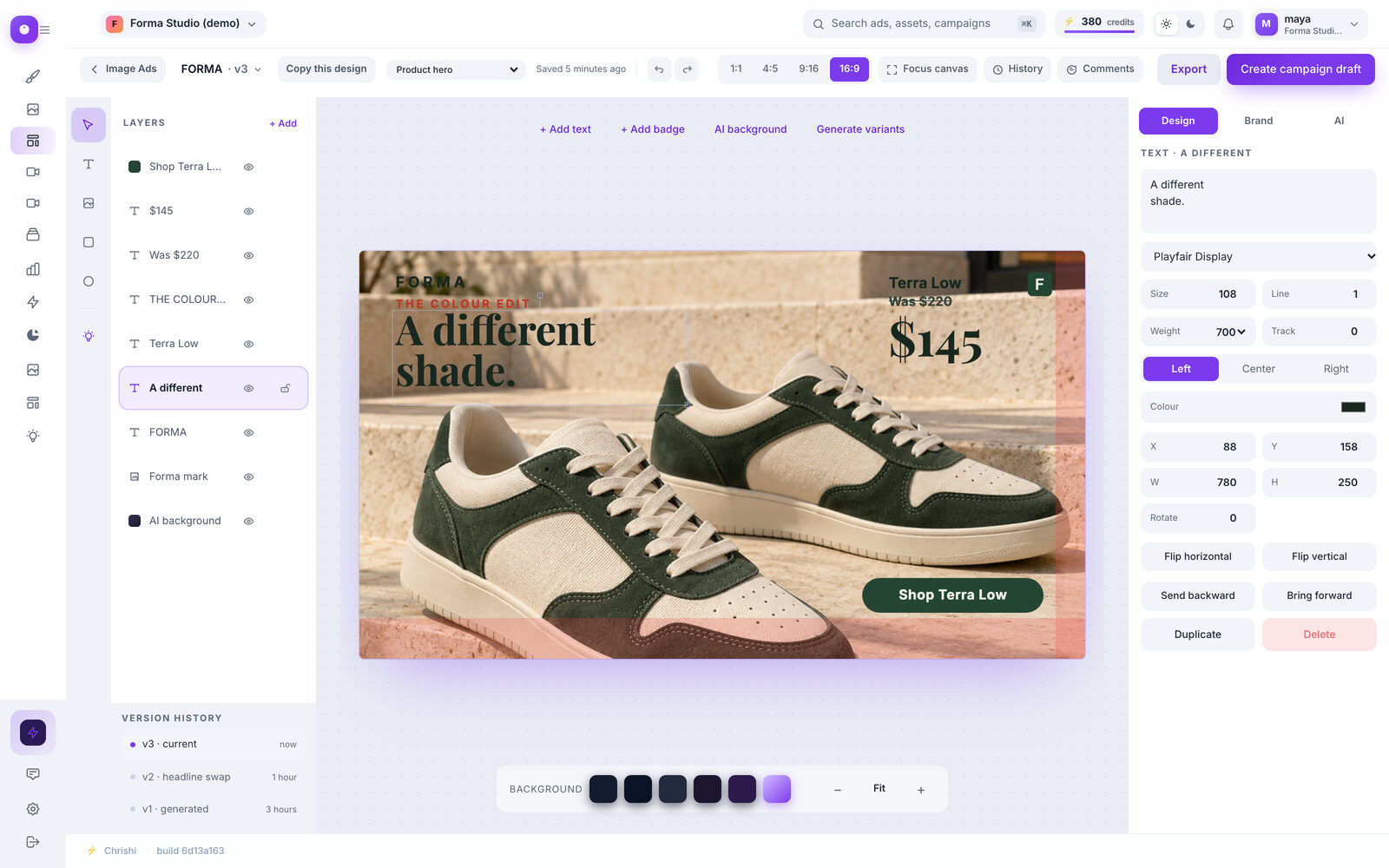
What you can change
Every part of the ad is its own layer.
Open a generated image ad and the photo, each line of text, the logo and the badge are separate things you can select and change.
-
Layers
Move, resize, rotate, flip and group. Guides snap within 6 pixels, and holding Alt turns the snapping off.
- Reorder, duplicate, delete
-
Text
Retype any line, and change its font, size, spacing and colour.
- 12 open-licence typefaces
-
Brand assets
Your logo and up to 12 partner logos from your brand kit go straight into the layout.
- Up to 12 partner logos
-
Keep-out guides
Meta’s phone interface strips are drawn on the artboard, and never in the export.
- Never exported
-
Versions and comments
Go back to an earlier version whenever you like; restoring saves the current design first. Pin comments to a layer and mark them resolved.
- Last 20 versions kept
-
New variations
Export a design, then make 6 variations of it. They keep its product, main text and brand style with a fresh arrangement.
- 30 credits for 6
Keep-out zones, drawn for you
Meta’s buttons cover part of every ad. Canvas shows you where.
On a phone, Meta’s interface sits over the right edge and the bottom of an ad. Canvas draws those strips on the artboard at each size, so you can keep anything important clear of them. The guides match Meta’s phone interface for each size; the stripes themselves are never exported.

The strips at every size
-
1:1 1080²
Right 64 px · bottom 86 px
-
4:5 1080×1350
Right 96 px · bottom 189 px
-
9:16 1080×1920
Right 96 px · bottom 346 px
-
16:9 1920×1080
Right 77 px · bottom 108 px
Striped areas are where Meta’s buttons and captions cover the ad on a phone. Layouts keep your text out of them.
Safe to leave and come back
Close the tab. Your ad is still there.
Canvas saves as you work, keeps earlier versions, and tells you when a second tab got there first.
Open your first ad in Canvas.
Make a batch in Image Ads, then click Edit in Canvas. Nothing to install.